 Kakuremi
File Attachments
Kakuremi can store file attachments inside the encrypted <code>.kdbx</code> database, right alongside the entry they belong to. Adding attachments is a Pro feature; viewing and managing existing ones is free.
Add an Attachment
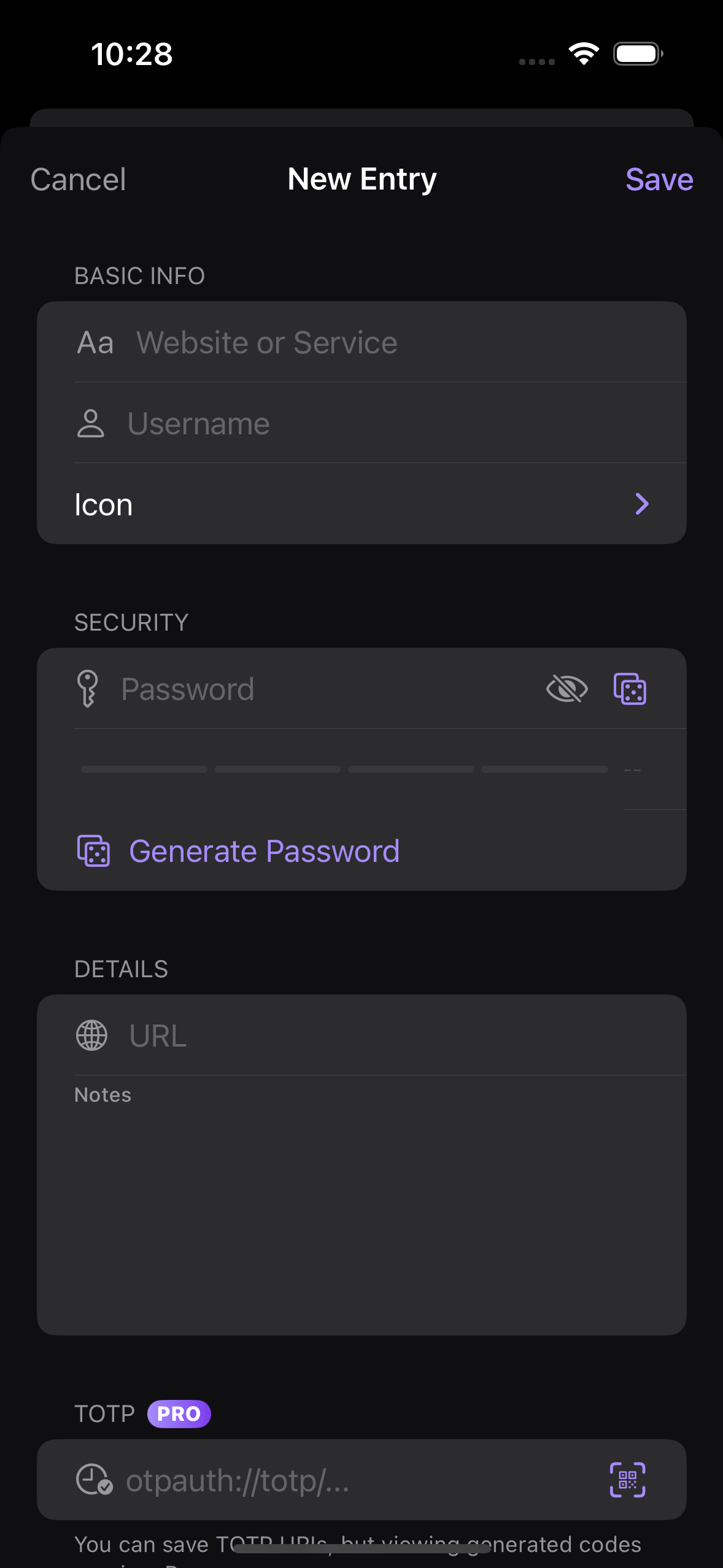
Open an entry and tap Edit to enter the entry editor. In the attachments section, tap to attach and pick a file from the document picker. You can choose any file type, and you can select more than one file at a time.
Save the Entry
Files you pick are held as pending attachments and are written to the database only when you tap Save. Until you save the entry, nothing is added to your vault.
View and Manage Attachments
Back on the entry detail screen, attached files appear in an N attachments card. Tap a file to preview it with QuickLook. Swipe a row to Share it through the iOS share sheet, or swipe to Delete it from the entry.
Where Attachments Live
Attachments are stored inside the encrypted .kdbx file itself, not as separate files on disk. They are protected by your master password and travel with the vault, so they stay with the entry wherever you move the database.