 Kakuremi
Search & Tags
Kakuremi keeps search and tags close at hand from the browser screen. This guide shows how the search bar works, how to tag entries, and how tag filters and colors help you stay organized.
Search from the browser screen
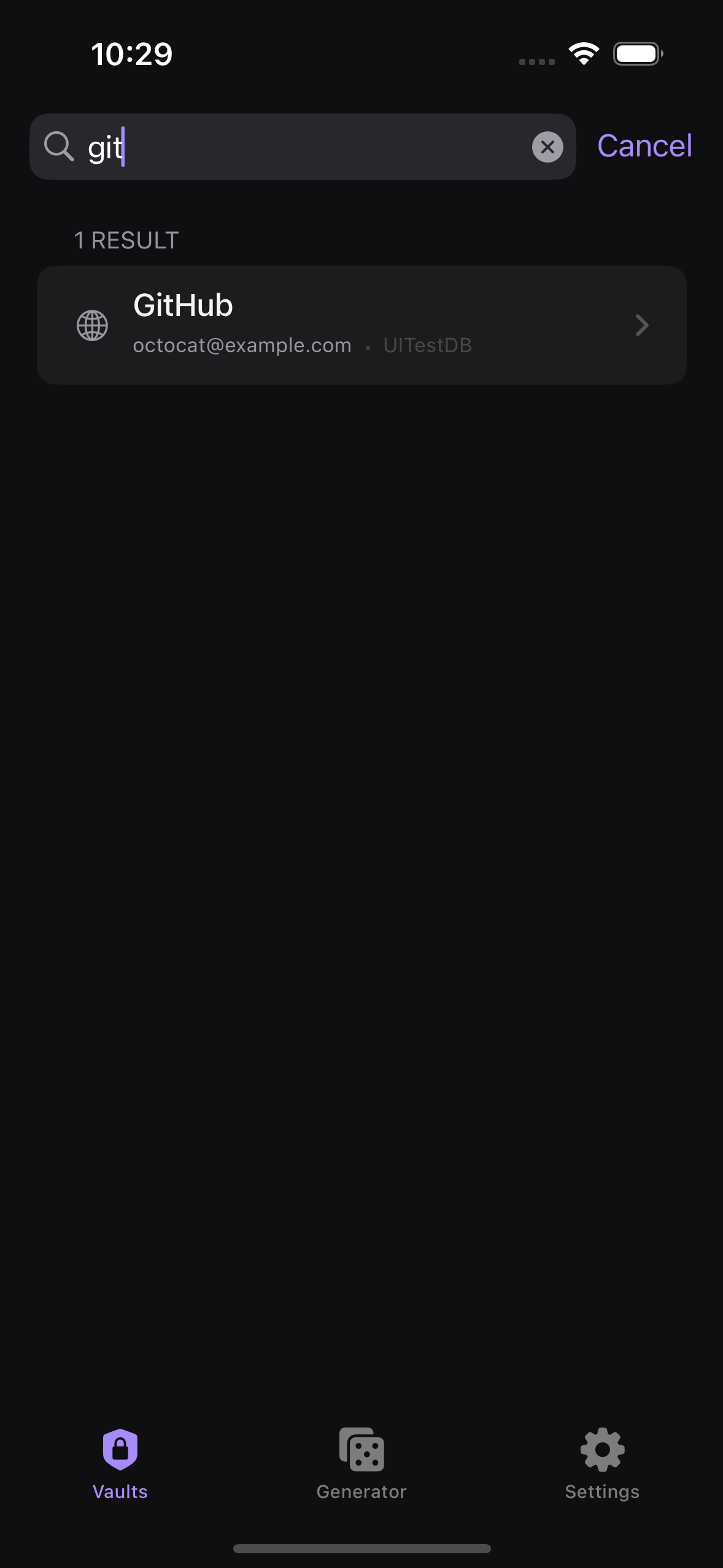
There is no separate search tab. Open your vault and use the search bar at the top of the browser screen. Type at least 2 characters — the search waits about 300 ms after you stop typing, so results are not instant on the very first keystroke.
What search matches
Search looks at five fields: title, username, URL, notes, and tags. The match is a substring, so a partial word is enough. Passwords are never searched, and entries in the Recycle Bin are excluded from results.
Add tags to an entry
Open an entry, tap edit, and find the Tags section. Type a tag and confirm it. As you type, suggestion chips show tags you already use, so it is easy to reuse an existing tag instead of creating a near-duplicate.
Review tags on the dashboard
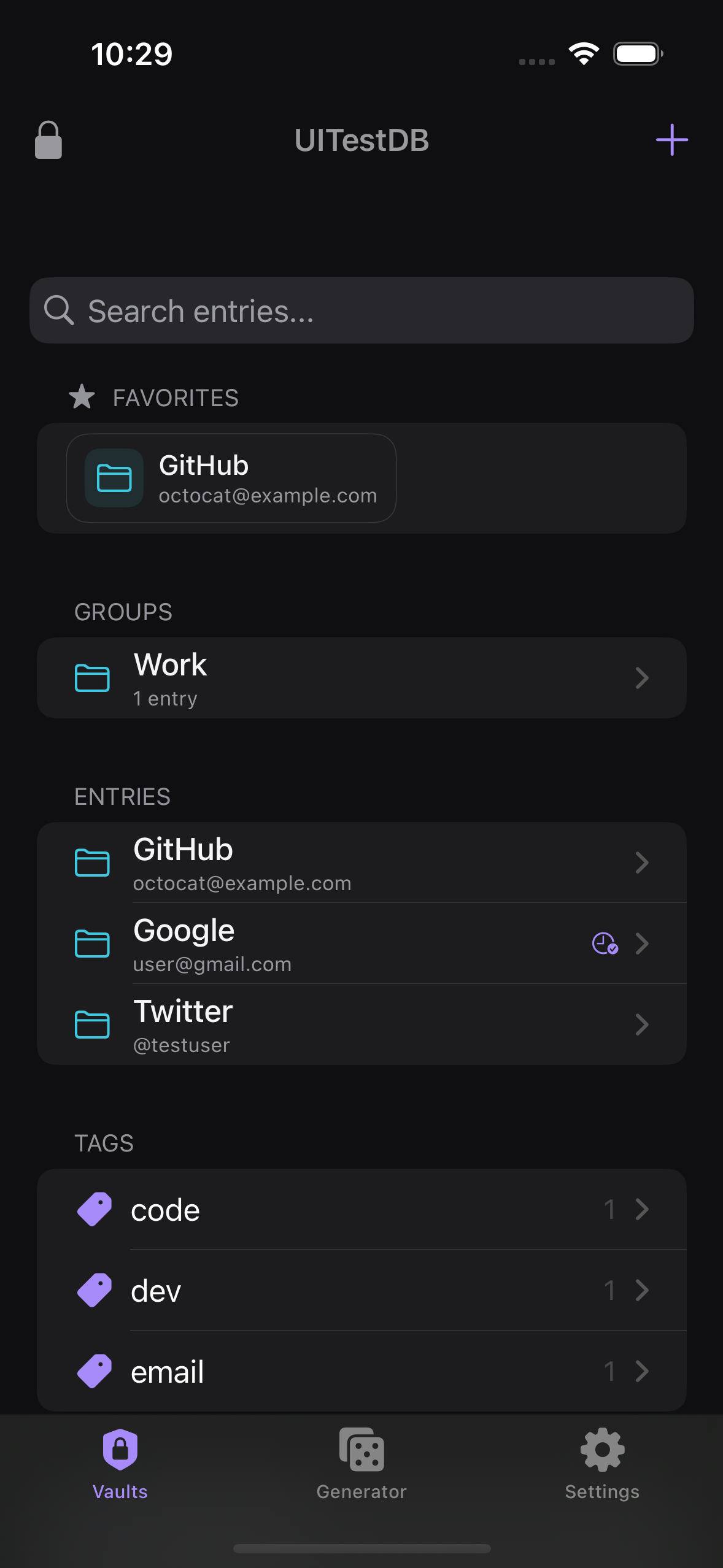
The dashboard has a Tags section that lists every tag along with a count of how many entries use it. This gives you a quick overview of how your vault is organized.
Filter by tapping a tag
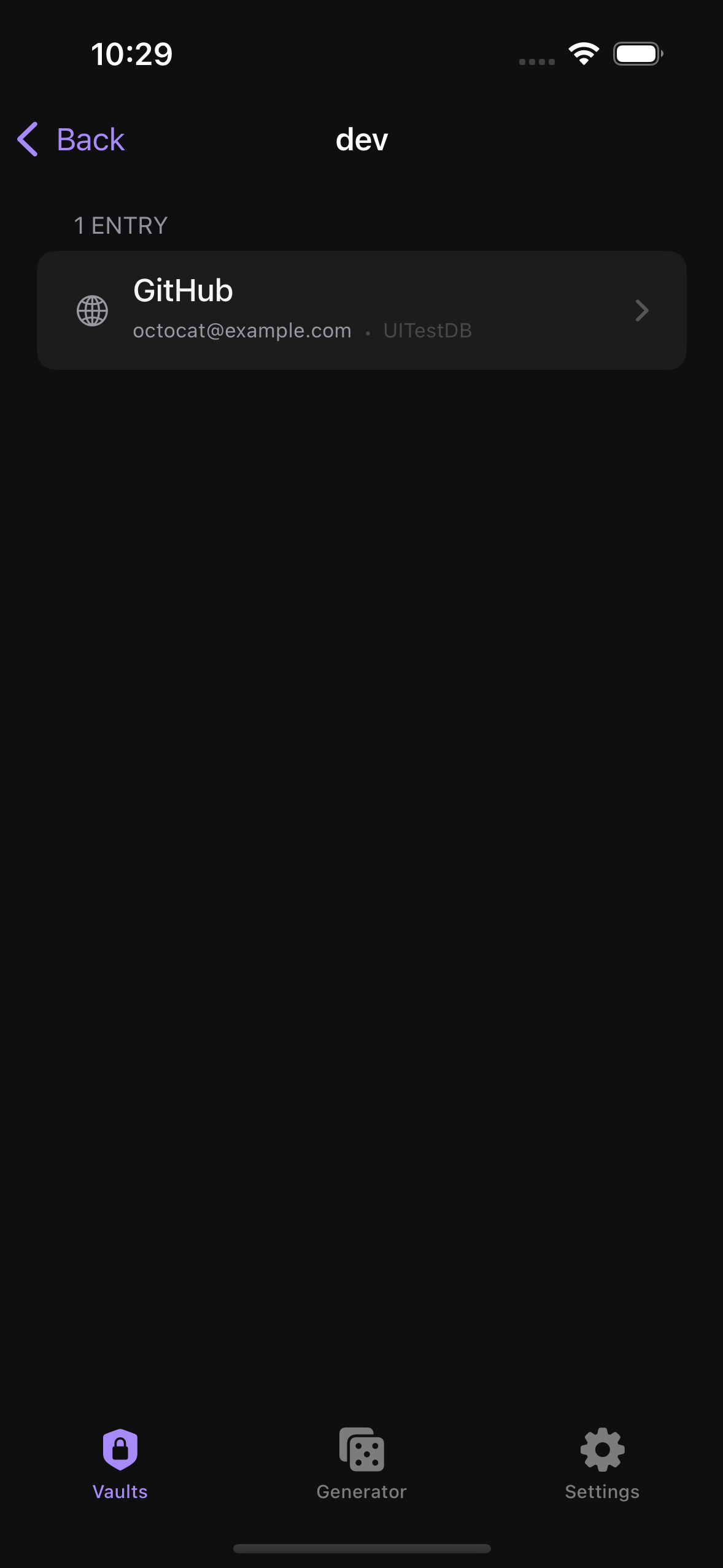
Tap any tag to open a filter that shows only the entries carrying that tag. Unlike the search bar, a tag filter is an exact match, not a substring match. As with search, Recycle Bin items are left out of the filter.
Color your tags
Long-press a tag to pick a color from a 13-color palette, or choose Reset to clear it. Colors make frequently used tags easier to spot at a glance.
UserDefaults — they are not saved inside your .kdbx file. If you open the same database on another device, the tags remain but their colors do not carry over.email and e-mail would otherwise behave as two separate tags.