 Kakuremi
Entry Templates
When you create a new entry, Kakuremi offers a template picker that pre-seeds a set of fields. Templates are starting points only — once the entry exists you can add or remove any field freely.
Open the template picker
When you start a new entry, Kakuremi shows the template picker first. It offers eight built-in templates: Custom, Login, Credit Card, Bank Account, Crypto Wallet, Identity, Secure Note, and Wi-Fi. Tap the one that best matches what you are saving.
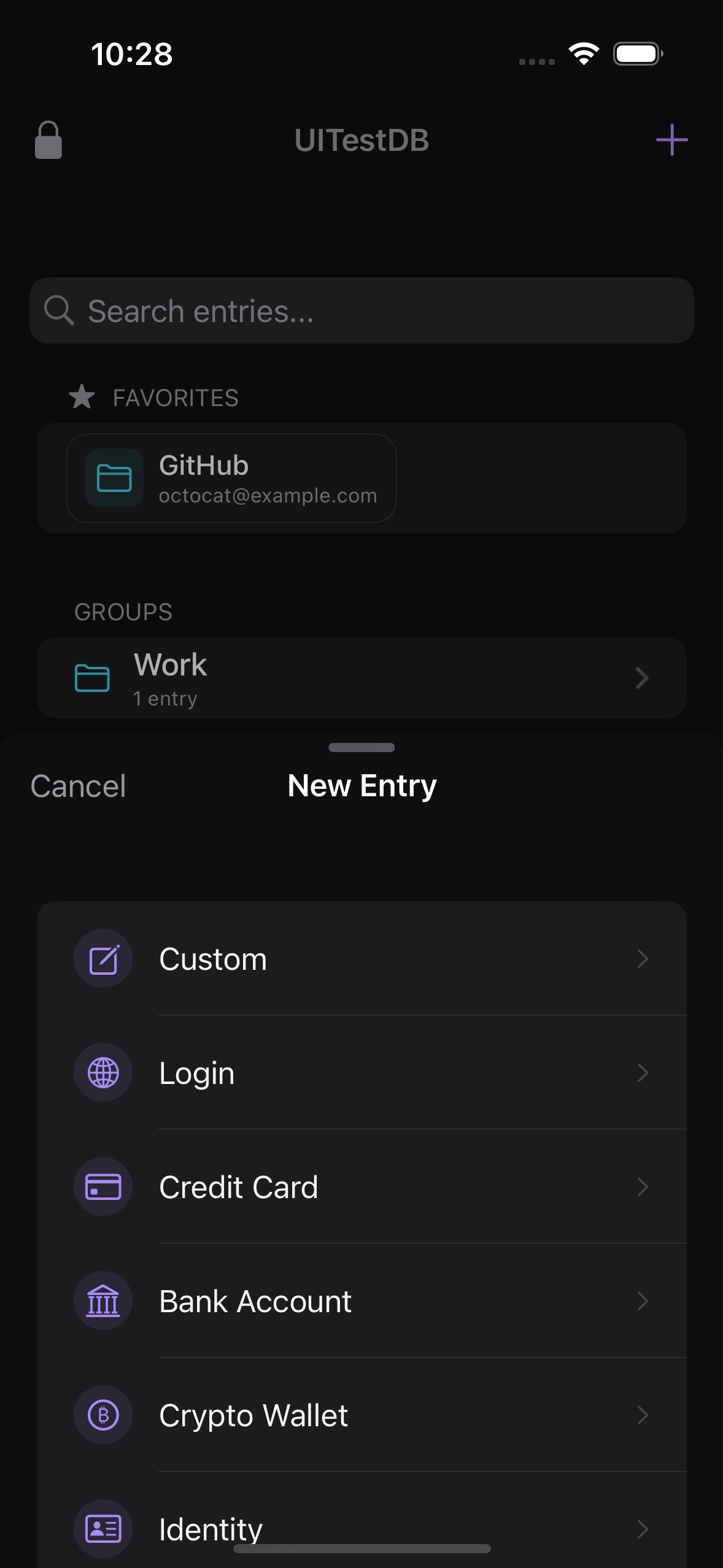
What a template does
A template simply pre-seeds a set of fields in the entry editor so you do not have to add them by hand. The field keys are always in English. The Custom template starts blank, which is useful when none of the others fit and you want to define your own fields from scratch.
Example: the Credit Card template
Choosing Credit Card pre-fills seven fields: Cardholder Name, Card Number (protected), Expiration Date, CVV (protected), PIN (protected), Card Brand, and Issuing Bank. Protected fields are concealed by default until you reveal them. Fill in the values that apply and leave the rest empty.
Adjust fields after creating the entry
Templates only seed defaults at creation time. After the entry exists, you can add or remove fields freely, just like any other entry, so a template never locks you into a fixed layout.
Custom and add only the fields you need. You can always add more later.