 Kakuremi
Face ID & Biometric Unlock
Once you have unlocked a database with its master password, Kakuremi can use Face ID or Touch ID for future unlocks. This article explains how biometric unlock is enabled, where the master password is kept, and what happens when biometrics is unavailable.
Unlock once with your master password
Biometric unlock builds on an existing master-password unlock. The first time you open a database, type its master password (and tap your YubiKey, if you configured one). The password field is always the primary input on the unlock screen.
Turn on Face ID Unlock
Open Settings and find the Security section. Switch Face ID Unlock on. There is no separate "Enable Face ID" opt-in prompt: once biometrics is available on your iPhone and this toggle is on, Kakuremi stores the master password the next time you unlock with it, so later unlocks can use Face ID or Touch ID.
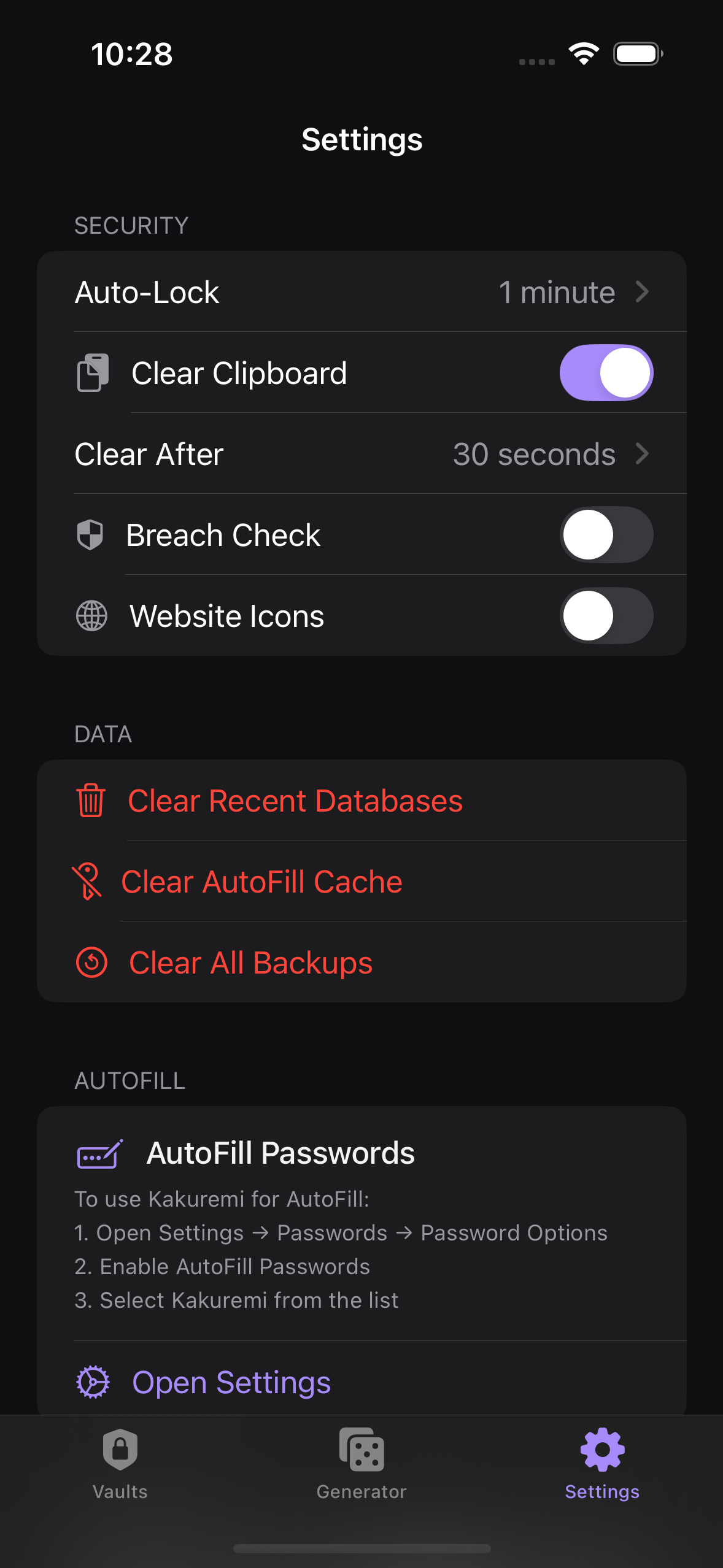
If you are testing in a simulator with no enrolled face or fingerprint, the Face ID Unlock row is hidden, because there is no biometry for it to use.
Where the master password is stored
When biometric unlock is on, Kakuremi keeps the master password in the iOS Keychain with the protection class WhenUnlockedThisDeviceOnly and the access control .biometryCurrentSet. It never leaves the device, and it is not stored in the Secure Enclave. iOS releases it to Kakuremi only after a successful biometric check.
Unlock with Face ID, or fall back to typing
On future unlocks, Kakuremi prompts for Face ID or Touch ID automatically. If biometric authentication fails, the screen simply stays on the password field — there is no separate "Use Master Password" button. Just type your master password to continue.
Auto-Lock and re-locking
Kakuremi re-locks the vault after the Auto-Lock timeout (1 minute by default; adjustable under Settings). After a lock that you trigger yourself, Kakuremi does not auto-prompt for biometrics — open the database again to be prompted.
Turning Face ID Unlock off
Switching Face ID Unlock off hides the biometric button, stops the automatic prompt, and stops saving the master password. It also purges any credential already stored in the Keychain, so the next unlock requires your master password.
.biometryCurrentSet, enrolling a new face or fingerprint in iOS invalidates it. You will re-enter your master password once, after which biometric unlock resumes.