 Kakuremi
TOTP Two-Factor Codes
Kakuremi can hold a TOTP (time-based one-time password) secret on an entry, so a single record carries both your password and its two-factor code. Storing the secret and viewing the live rotating code are both free — no subscription needed.
Add a TOTP secret to an entry
Open the entry in the editor and find the TOTP field. Kakuremi stores the secret as a complete otpauth:// URI rather than separate secret, issuer, and digits fields, so you add the whole URI in one of two ways: scan a QR code, or paste the URI directly into the field.
Scan a QR code or paste the URI
Tap to open the scanner and point the camera at the two-factor QR code from the service you are enrolling. The scanner accepts only otpauth:// QR codes. If you already have the URI as text, paste it into the TOTP field instead. Both methods store the same value.
View the live rotating code
The entry detail shows the current code. It refreshes every second, and the rotation period is read from the URI itself — the default is 30 seconds, but it is not hardcoded, so a service that uses a different period is honored.
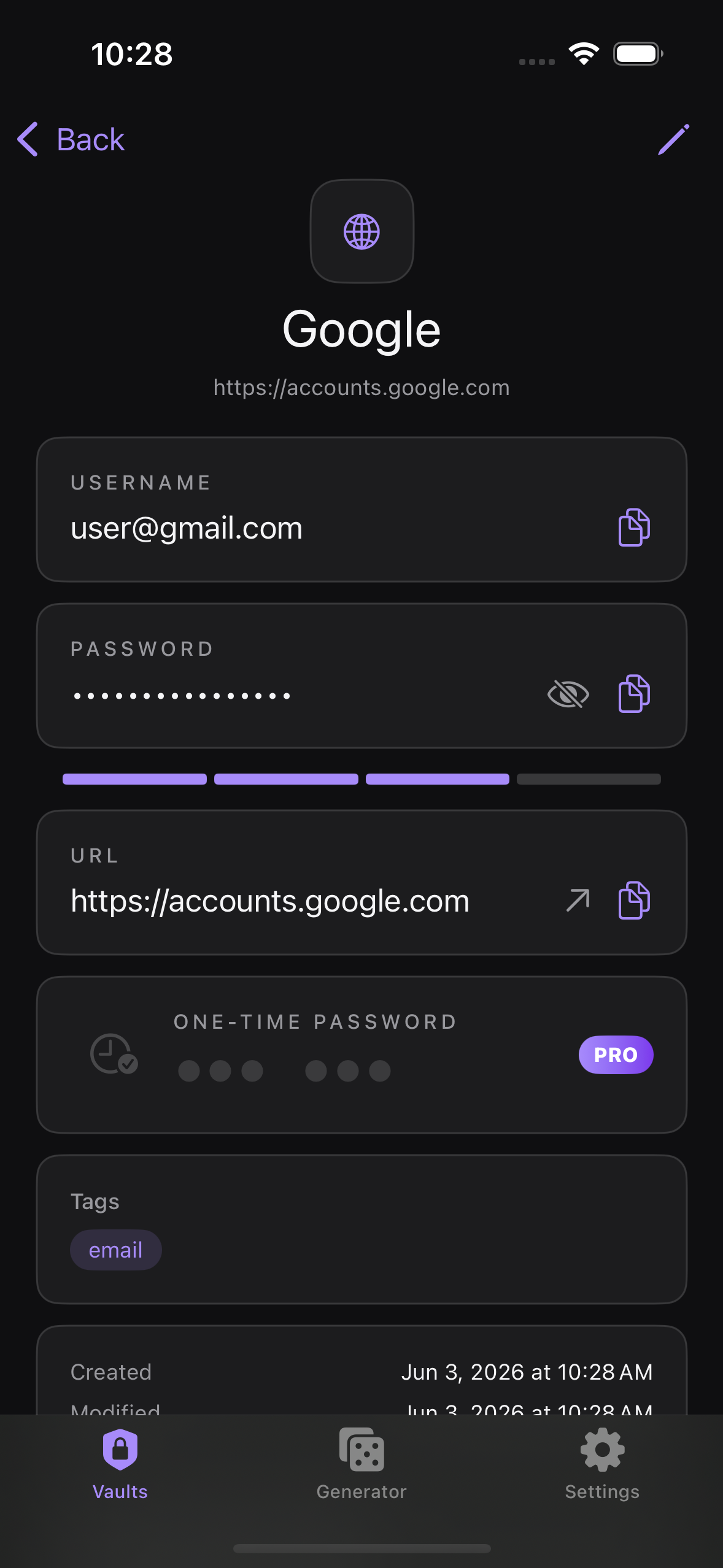
otpauth:// URI and viewing the live rotating code are both free — no subscription is needed for two-factor codes.
Copy the code
Use the dedicated copy button next to the code to put it on the clipboard, then paste it into the service's two-factor prompt. Tapping the code itself does not copy it.