 Kakuremi
Password Generator
Kakuremi includes a character-based password generator you can reach two ways: the standalone Generator tab, and a sheet that opens directly inside the entry editor. Both share the same options, so you can produce a password on its own or drop one straight into the entry you are editing.
Open the Generator tab
Tap the dice icon in the tab bar to open the standalone Generator. A new password appears immediately, with a Copy button and a Regenerate button below it. Tap Copy to place the password on the clipboard, or Regenerate to produce another one with the current settings.
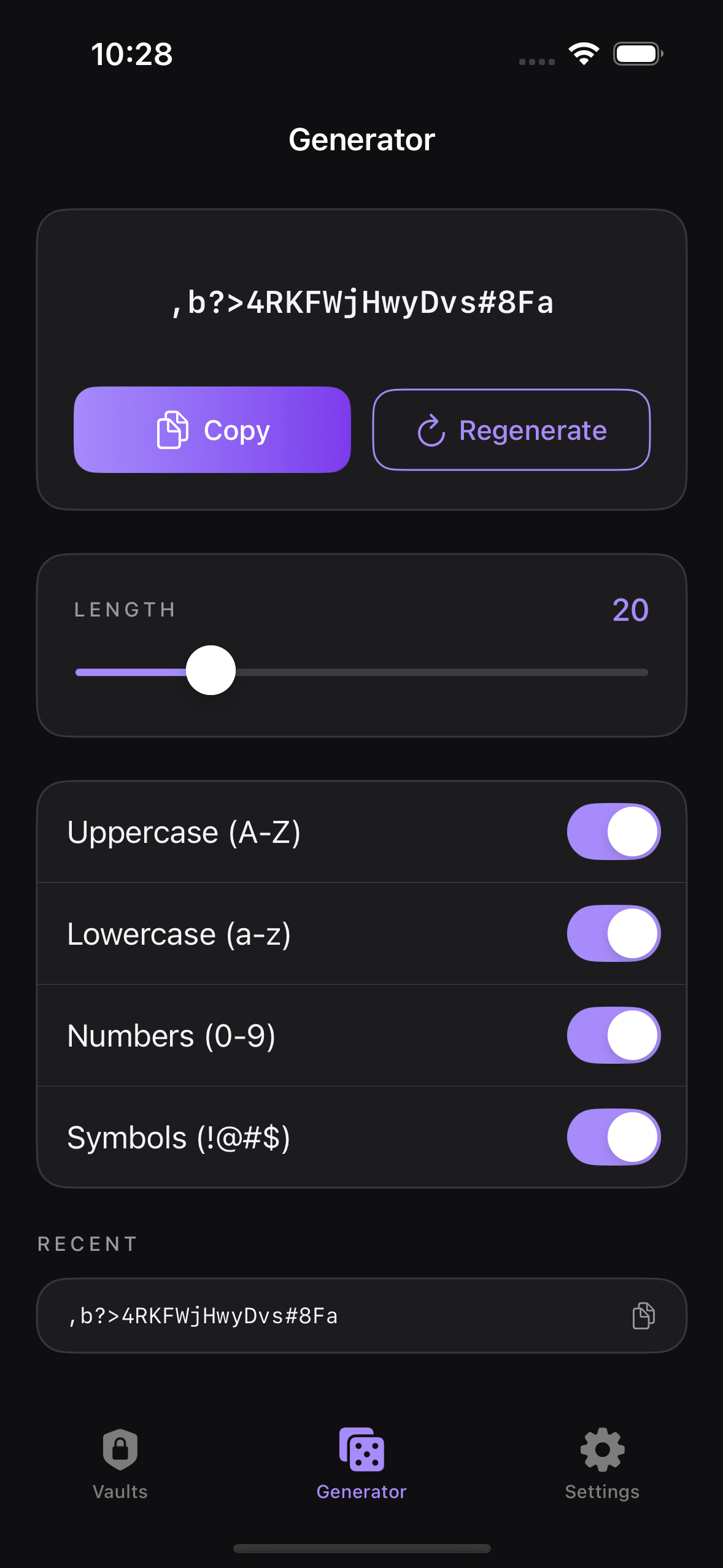
Adjust length and character types
Set the length anywhere from 8 to 64 characters; the default is 20. Below the length you will find four toggles — Uppercase, Lowercase, Digits, and Symbols — all on by default. The password regenerates automatically whenever you change the length or any toggle, so there is nothing extra to confirm.
Reuse a recent password
The Generator tab keeps a Recent list of your last five generated passwords. If you copied one a moment ago and need it again, you can pick it from this list instead of regenerating.
Generate inside the entry editor
While editing an entry, tap the generate button on the password field to open the generator as a sheet. It offers the same length and character options. Tap Use to insert the generated password into the entry you are editing, or Cancel to close the sheet without changing anything.
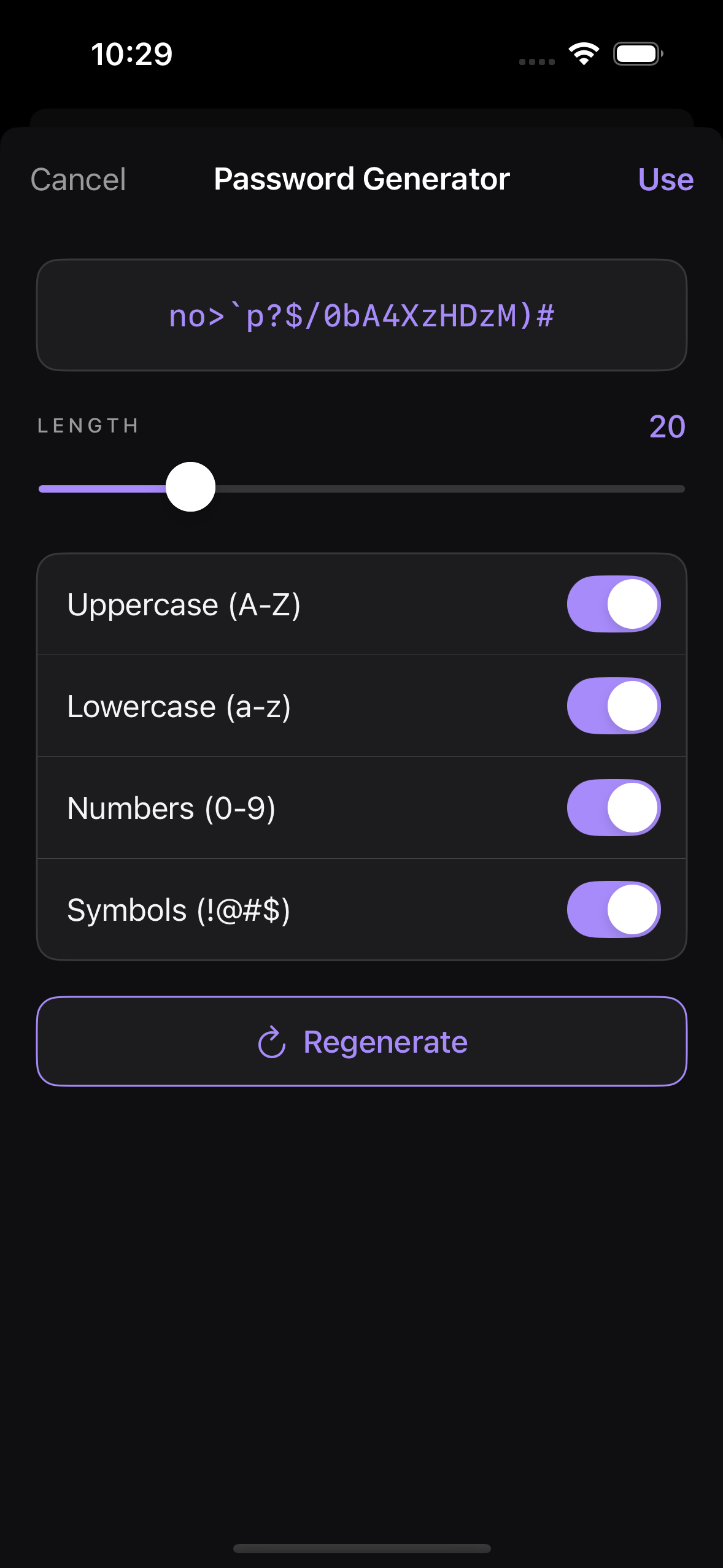
Security section.