 Kakuremi
YubiKey NFC Protection
Kakuremi can require a YubiKey tap in addition to your master password, binding an HMAC-SHA1 Challenge-Response key directly to a database. This guide covers what you need, how to program and enroll a key over NFC, and why a backup key is essential.
Check the Requirements
Kakuremi supports YubiKey HMAC-SHA1 Challenge-Response as a second factor on a database. You need a YubiKey 5 series key with NFC and an NFC-capable iPhone. Communication is NFC only: there is no Lightning or 5Ci connector support, and FIDO-only keys are not accepted.
Program the YubiKey
Using the Yubico Authenticator app, program a slot on your YubiKey for HMAC-SHA1 Challenge-Response. You can use slot 1 or slot 2; Kakuremi defaults to Slot 2. Make a note of which slot you chose and the secret you used, as you will need both again for a backup key.
Enroll the Key in Kakuremi
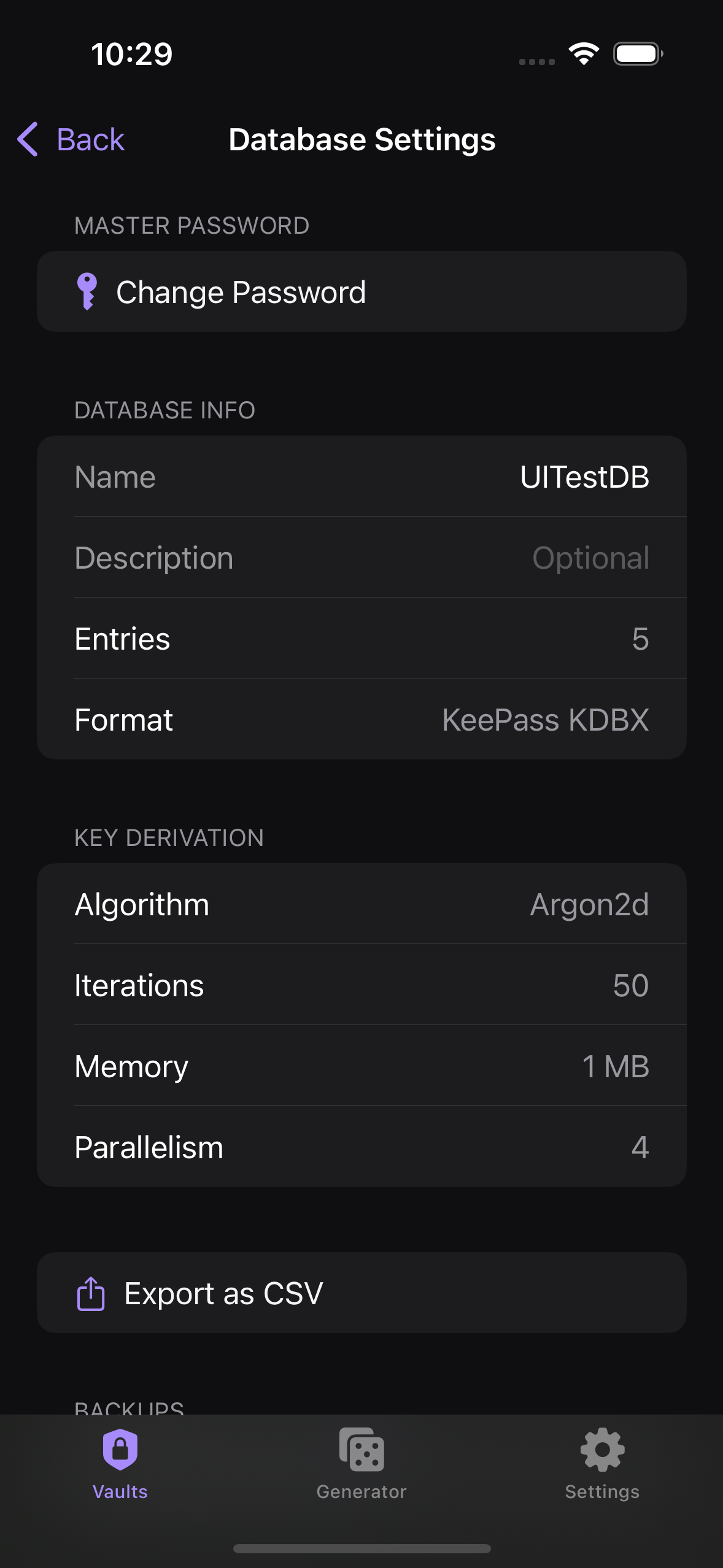
Open the vault, then go to Database Settings > YubiKey Protection. Choose Slot 1 or Slot 2 to match how you programmed the key, then tap Add YubiKey. When prompted, hold the key to the top of your iPhone. Kakuremi binds the key to this database itself — you do not configure it in a desktop app.
Unlock with an NFC Tap
From now on, unlocking this vault prompts for an NFC tap in addition to your master password. The tap prompt is the standard iOS system sheet; hold the YubiKey to the top of your iPhone when it appears to complete the unlock.
Keep a Backup Key
If you lose the enrolled YubiKey, there is no recovery — the database cannot be opened without it. Program a second YubiKey with the same HMAC-SHA1 secret and keep it somewhere safe as a backup.
Troubleshooting
If enrollment or unlock fails, the error code points to the cause. An unprogrammed slot fails with KR-5007, and a FIDO-only key is rejected with KR-5006 — reprogram the correct slot or use a supported key. If NFC is unreliable (KR-5003 or KR-5005), restarting the iPhone often helps.