 Kakuremi
App Settings
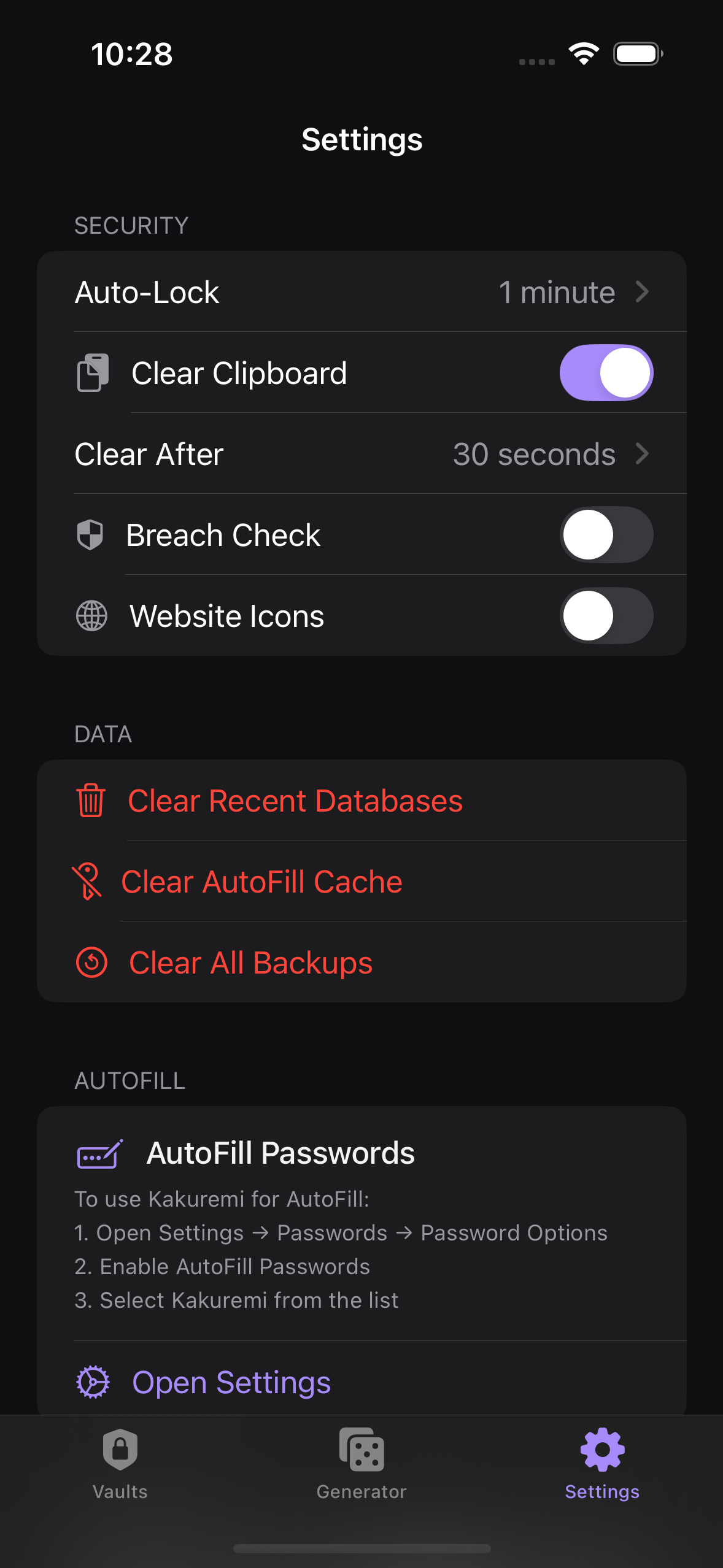
The Settings tab holds the app-wide preferences that apply across Kakuremi, separate from the settings stored inside each database. Here you can adjust security behavior, control the app's only optional network feature, clear local caches, and change the look of the app.
Security
The Security section controls how Kakuremi protects an open database. Auto-Lock sets how long the app stays unlocked while idle — Immediately, 30s, 1m, 5m, 15m, or Never. The default is 1 minute. The Face ID Unlock toggle lets you reopen your vault with biometrics instead of typing the master password, and Clear Clipboard wipes a copied password after the interval you choose. Breach Check and Website Icons are also configured here.
Website Icons
Website Icons is off by default. When you turn it on, Kakuremi shows a site's favicon next to entries that have a URL. To fetch the icon, it sends only the site's host (domain) to Google's favicon service — never the full URL, your username, or any other field. While the setting is off, Kakuremi makes no such requests.
Data
The Data section clears local app state. Clear Recent Databases removes the list of recently opened files, Clear AutoFill Cache resets the cache that AutoFill uses, and Clear Backups removes automatically created backup copies. None of these touch your actual .kdbx files — your databases stay where you saved them.
Data actions clear only local app state and do not delete your .kdbx databases. Clear Backups permanently removes the automatic backup copies Kakuremi has made, so use it only if you no longer need those snapshots.
AutoFill
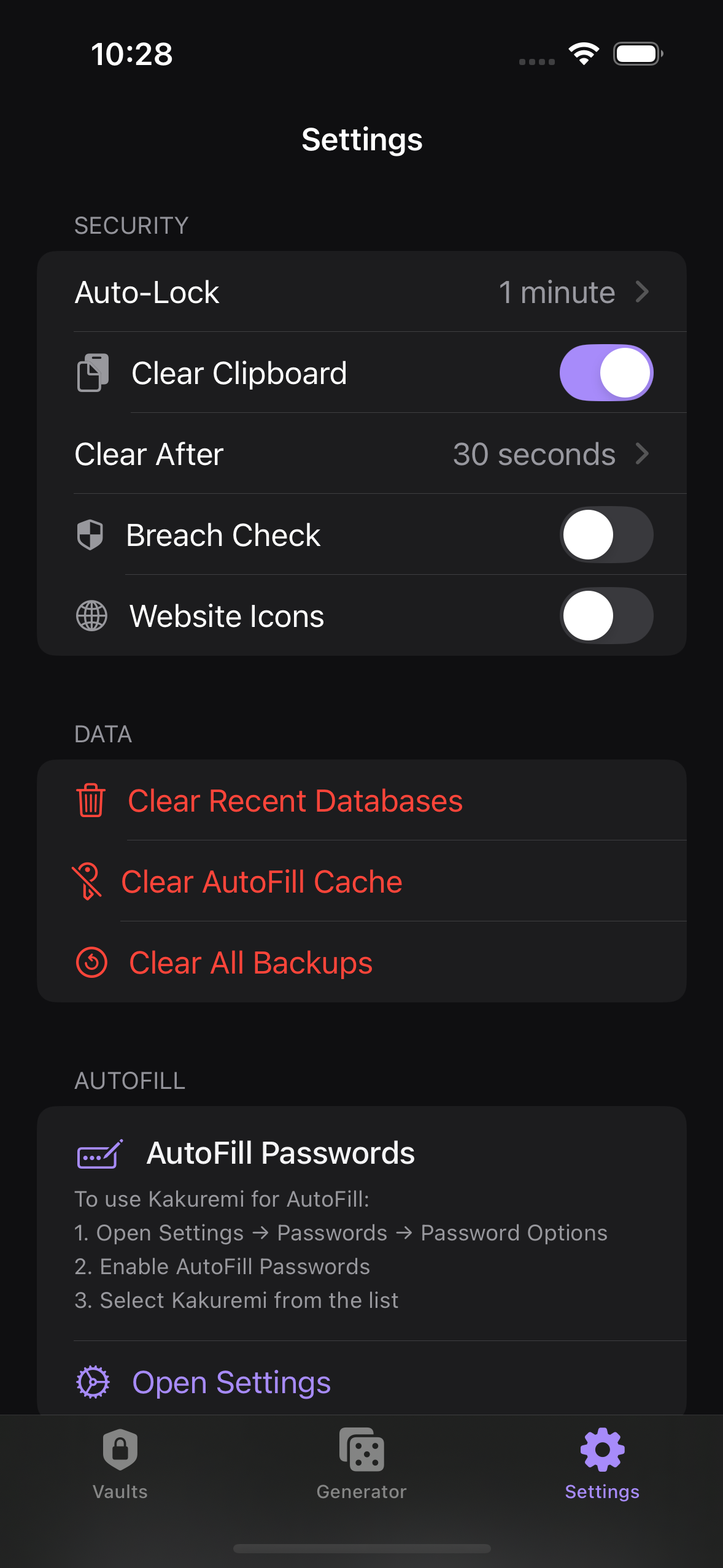
The AutoFill section points you to the iOS setup needed before Kakuremi can fill passwords in Safari and other apps. AutoFill is enabled in the iOS Settings app rather than inside Kakuremi — see the AutoFill setup guide for the full steps.
Appearance
The Appearance section sets the app's look. Choose a Theme — System, Light, Dark, or Warm, a sepia-toned light theme — and pick from 6 accent colors. These choices apply across the whole app and take effect immediately.
Restore Purchases? It lives on the Paywall, not in Settings. Open the Paywall from any Pro feature to restore a previous purchase.