 Kakuremi
AutoFill Setup
Kakuremi provides an iOS AutoFill credential provider, so you can fill saved logins in Safari and other apps. Enable it once in iOS Settings, then fill entries through the keyboard's password picker.
Enable AutoFill in iOS Settings
AutoFill is turned on once at the system level. Open the iOS Settings app, then go to Passwords > Password Options, turn on Enable AutoFill Passwords, and select Kakuremi in the provider list. You can leave iCloud Passwords enabled alongside Kakuremi, or select Kakuremi instead. This screen is part of iOS, so the path may vary slightly by version.
Review AutoFill in Kakuremi
Kakuremi's own AutoFill settings live in the app's Settings screen. From here you can confirm AutoFill is active and adjust the options described below.
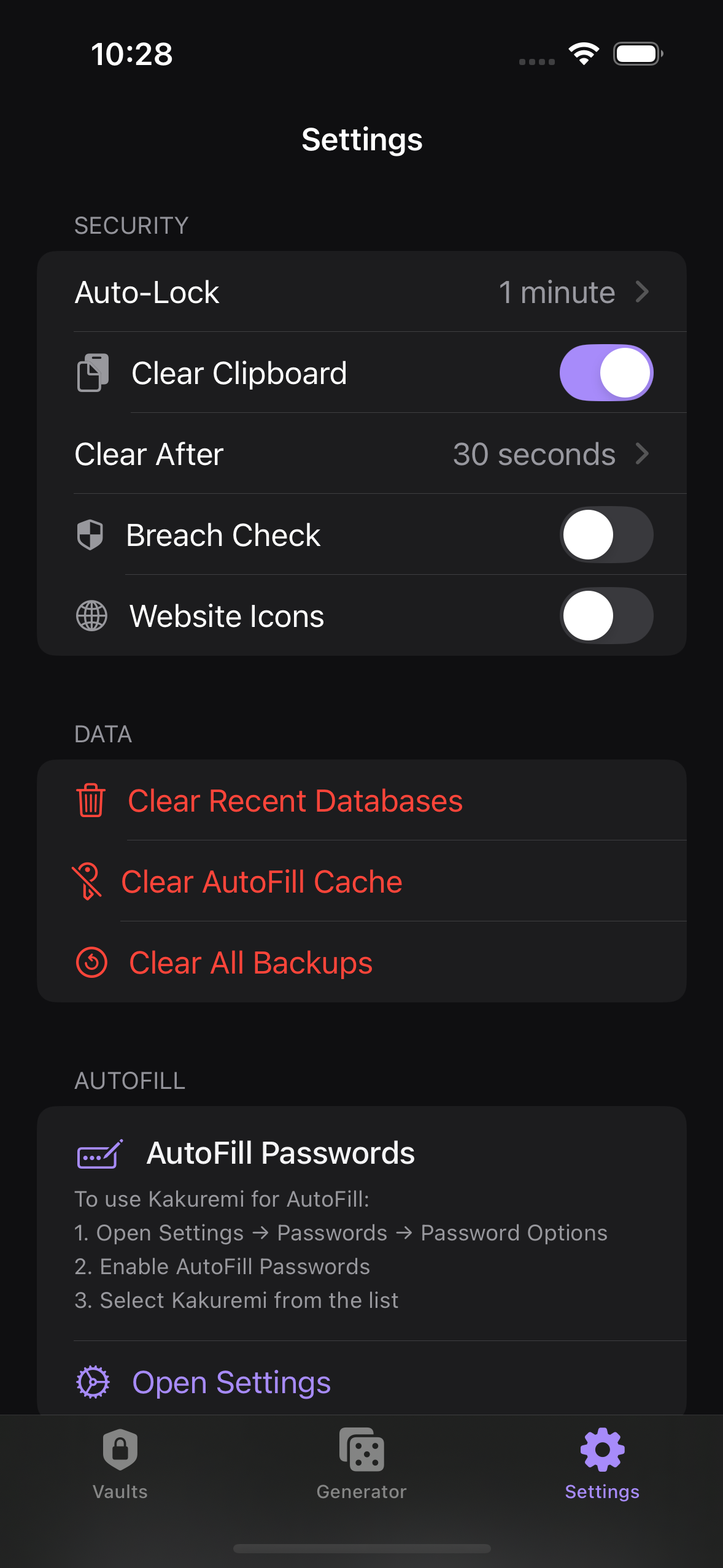
Fill a login from the keyboard
Kakuremi does not place entries directly in the keyboard's suggestion bar. To fill a login, tap a username or password field, then tap the key (passwords) icon above the keyboard and choose Kakuremi. Kakuremi opens its own picker where you select the entry you want, and the username and password are filled in.
Which database AutoFill uses
AutoFill serves only your most recently unlocked database. If you keep more than one vault, unlock the database you intend to fill from before using AutoFill so its entries are the ones offered.
Require Face ID for AutoFill
For an extra check, turn on Require Face ID for AutoFill. When enabled, the picker asks for Face ID (or your device passcode) before showing any entries, so a login cannot be filled without authenticating first.
Saving a new login during AutoFill
When you sign up or sign in and choose to save the login while AutoFill is active, Kakuremi cannot write to your encrypted file in the background. The new login is queued and merged into your vault the next time you open and unlock Kakuremi.