 Kakuremi
Create & Open a Database
Kakuremi keeps your passwords in a standard, encrypted KeePass database file (.kdbx) that you control. This guide covers creating a new vault, opening an existing one, and unlocking it.
Create a new database
On the Vaults screen, tap the full-width Create New Database button. There is no + button and no in-form location picker. Enter a name and a master password for the vault.
When you confirm, iOS shows the Files save dialog, where you choose where the .kdbx file is saved — On My iPhone, iCloud Drive, or any other Files location. The vault is persisted only once that save succeeds, not the moment you tap confirm.
New databases use AES-256 encryption with the Argon2 key-derivation function and start with four default groups: General, Internet, Email, and Finance.
Open an existing database
To open a vault you already have, tap Open from Files (the folder icon) and pick a .kdbx file. Both KDBX 3.x and 4.x files are supported.
Vaults you have opened before appear in the Recent Databases list, so you do not have to browse the Files picker each time. The location label next to each one (iCloud Drive, On My iPhone, or Files) reflects where the file actually lives.
Unlock the vault
Enter the master password on the unlock screen. If the vault is protected by a key file, attach it here — key files are selected at unlock time, not during creation. Vaults protected by a YubiKey also prompt for an NFC tap.
Browse your entries
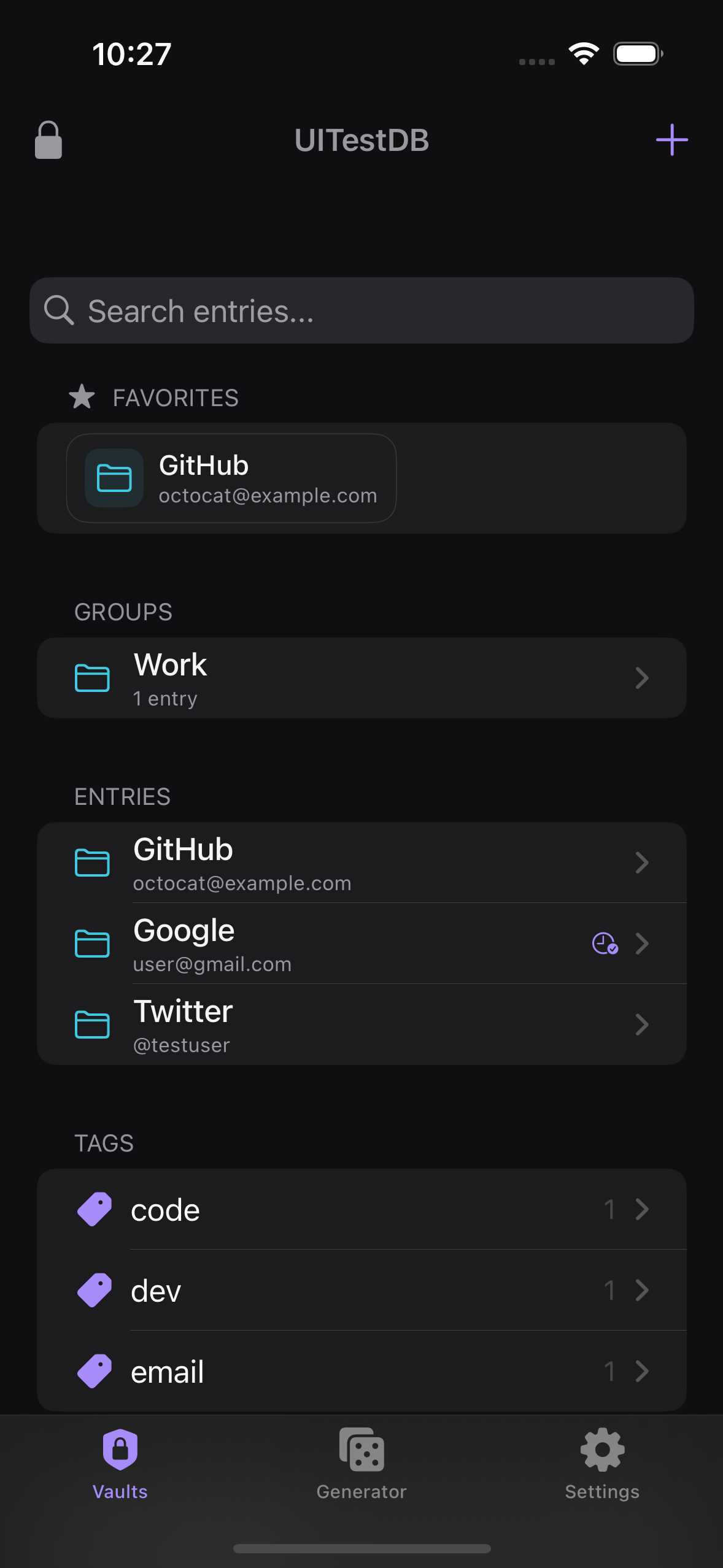
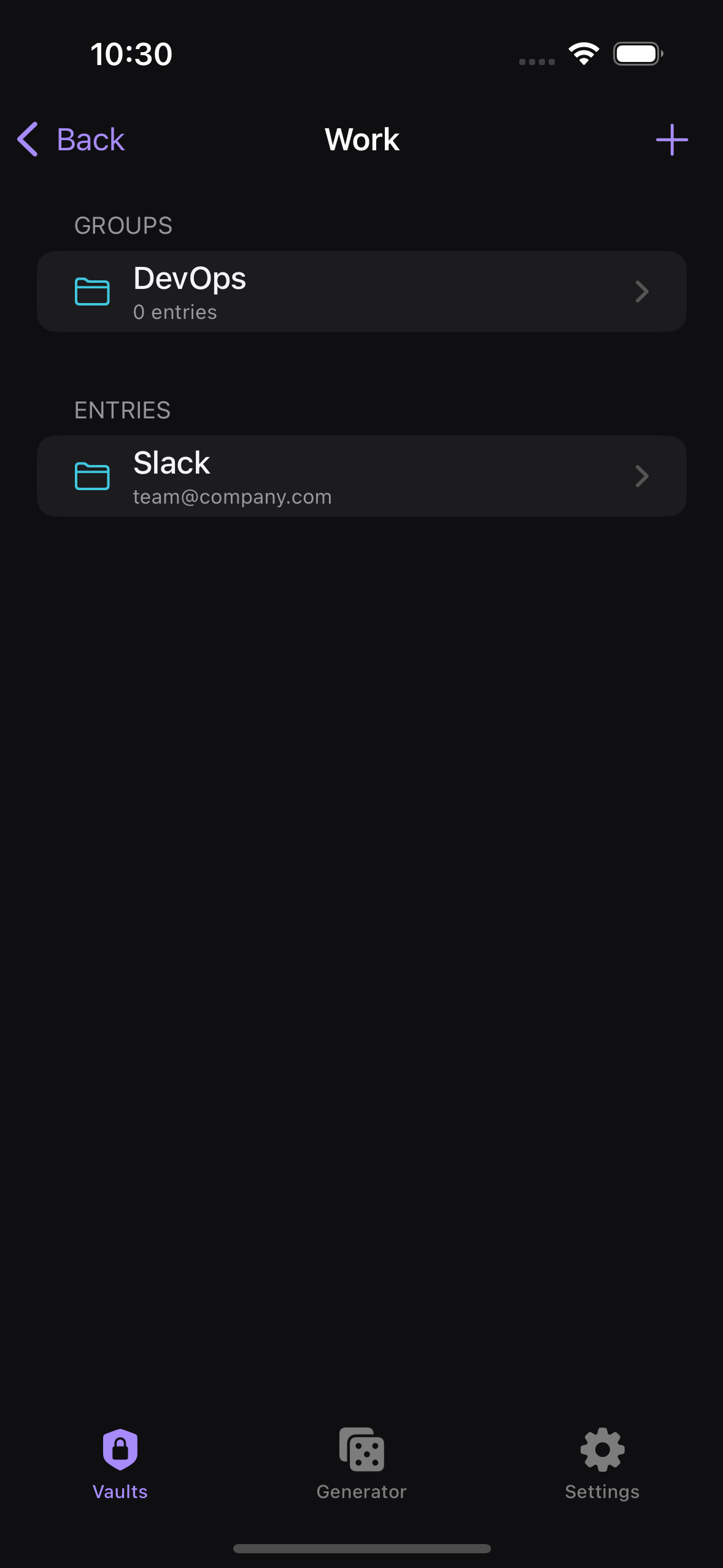
Once the vault is unlocked, you see its groups and entries. Tap a group to move into it, or tap an entry to view its details.
Create New Database and Open from Files open the Paywall — a second or additional database is a Pro feature.
iCloud Drive gives you file portability across devices through Apple's Files, but if two devices edit the same file, the changes can overwrite each other (last writer wins). See the iCloud Drive guide for details.